Skip to content

Allegro messages and email in one inbox

Manage Allegro messages, email, returns, complaints and repairs in one place. Give every ticket a status and response deadline, and track the time you spend on it for billing.

Try the demo

Try the demo with fictional data. Changes are saved until the nightly reset, and no messages are sent externally. Already have an account?

Illustration: messages and parcels flowing towards a laptop on a tidy desk
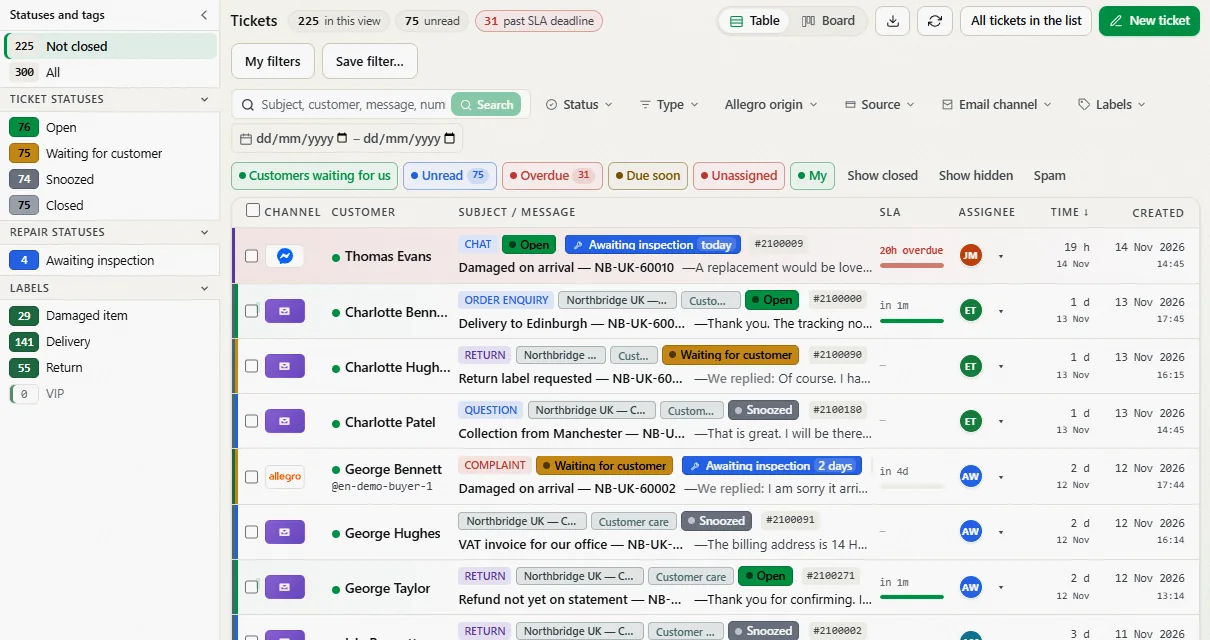
Tickets screen: Allegro and email tickets, statuses with counts on the left, response deadlines in a column
Your ticket queue, shown with English demo data.

Built for your team

Allegro sellers

Handle customer questions, discussions, complaints and returns from Allegro in one queue. The order number appears beside each message, so you can find it without opening another panel.

Small repair businesses

Track each repair with a status, reference number and expected completion date. See how many days each item has been with the repair service and which repairs are overdue.

Customer service teams

Keep track of tickets across your team, shops or customers. Each ticket has an assignee, response deadline and history, and you can record time for invoicing.

What you can do with ABCare

See what needs attention before customers chase

The dashboard highlights overdue tickets, tickets due within an hour and unassigned tickets. Each group links straight to its ticket list, so you can decide what to tackle first.

Set your own response deadlines in company settings.
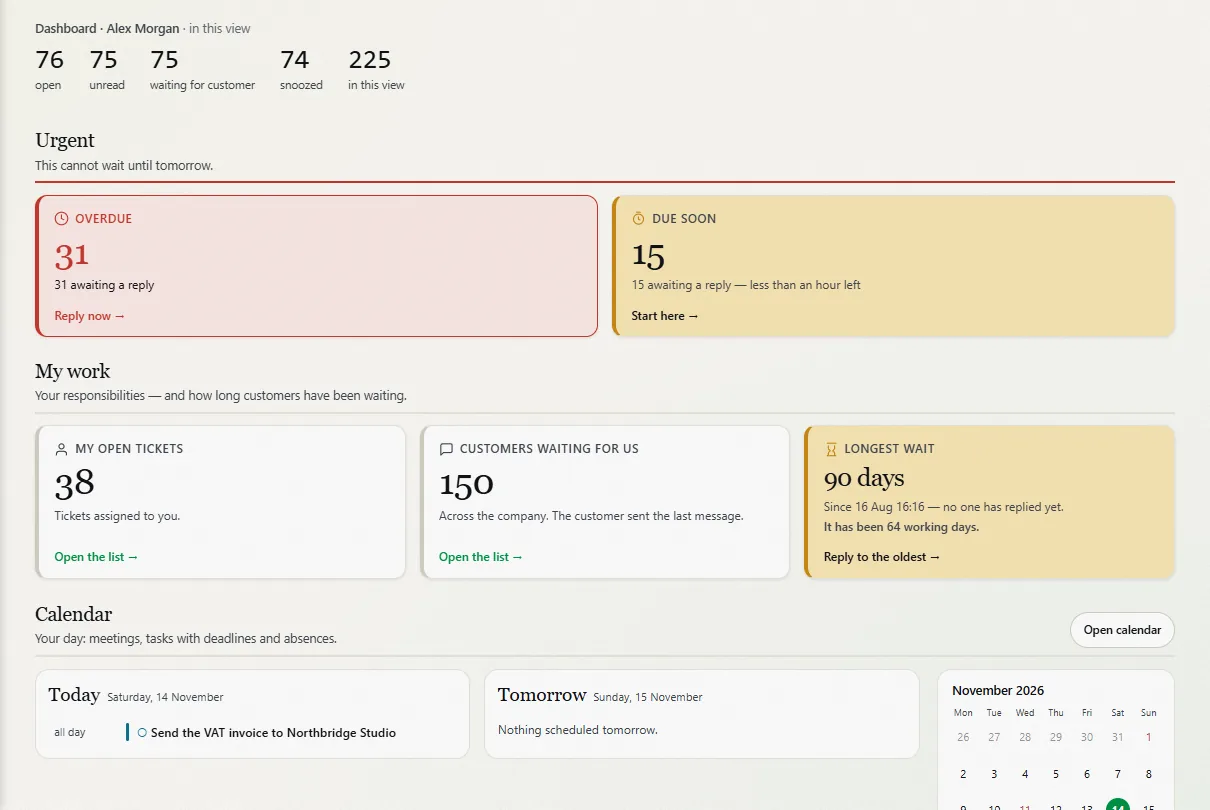
Dashboard: overdue tickets, tickets approaching their deadlines, unassigned tickets and my work
Response deadlines and your team’s workload at a glance.

Track repair times and expected returns

Mark an item as sent to an external repair service from its ticket. Choose a repair status and enter the service provider, repair reference and expected return date.

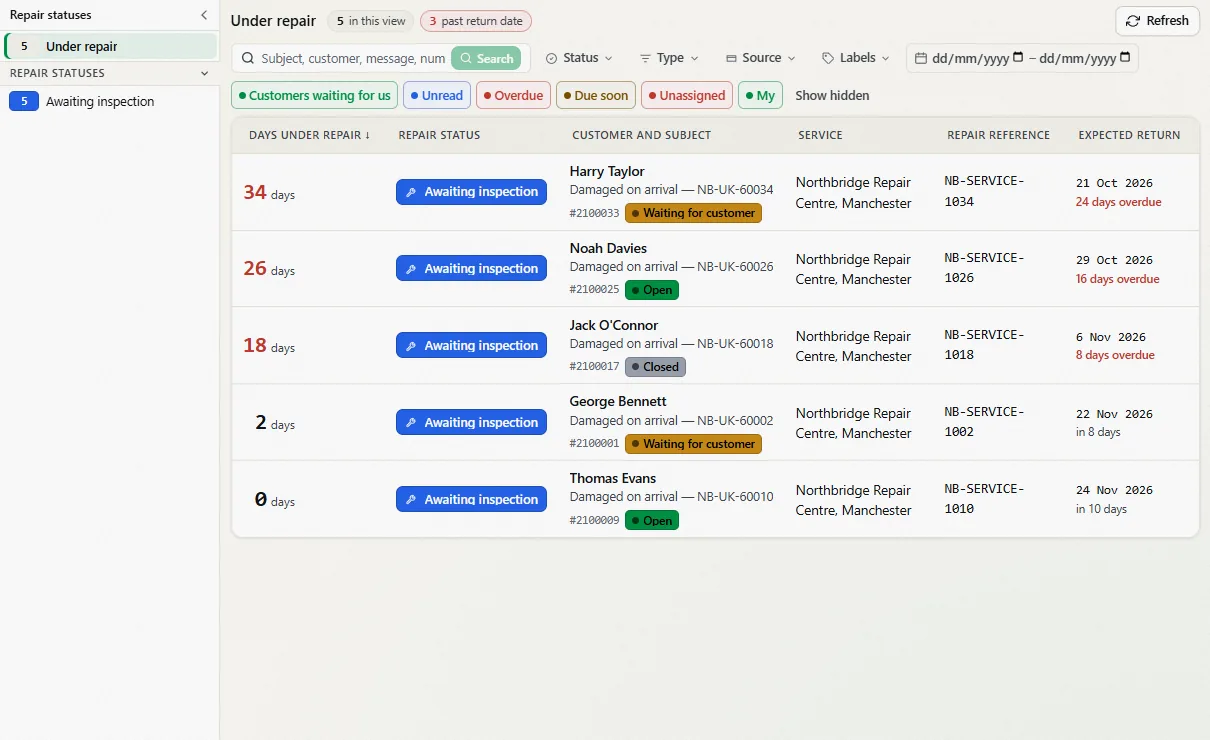
The ‘Under repair’ screen brings these tickets together. See how many days each item has been away, how long until its expected return and whether it is overdue.

Under repair screen showing items, days elapsed, repair statuses, service providers, reference numbers and expected return dates
Repair statuses, reference numbers and due dates together.

Manage returns with custom statuses

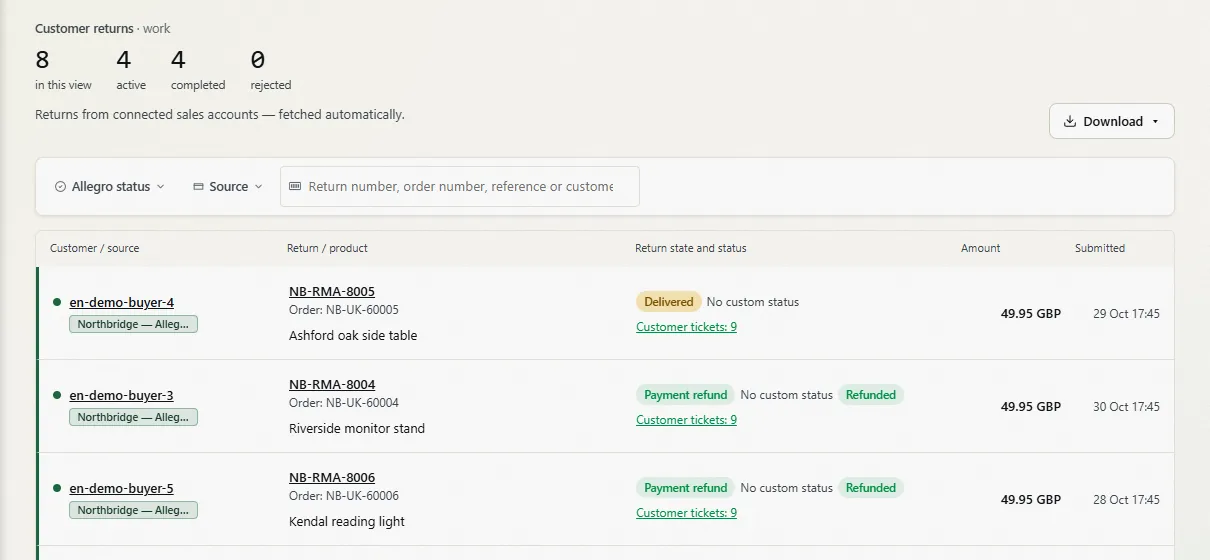
Allegro returns are imported automatically. Create your own status names and colour groups, then update several returns at once. Export the list to CSV with the status names included.

Returns screen: customer returns with coloured statuses and amounts
Returns with custom statuses and order details.

Organise tasks on a board

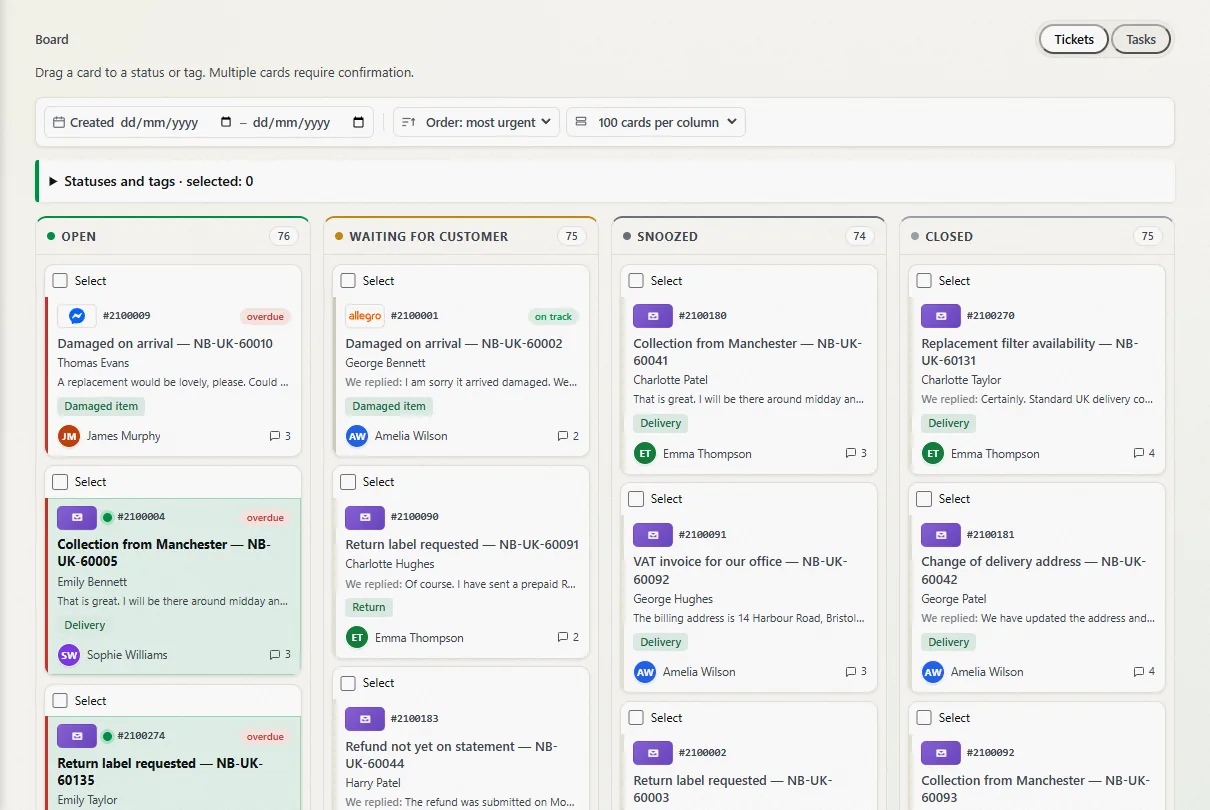
View tickets and team tasks in columns by status. Drag a card to change its status, with the assignee, deadline and message count visible on each card.

Board: status columns with ticket cards, assignees and deadlines
Tickets and tasks organised by status.

Track billable time without a spreadsheet

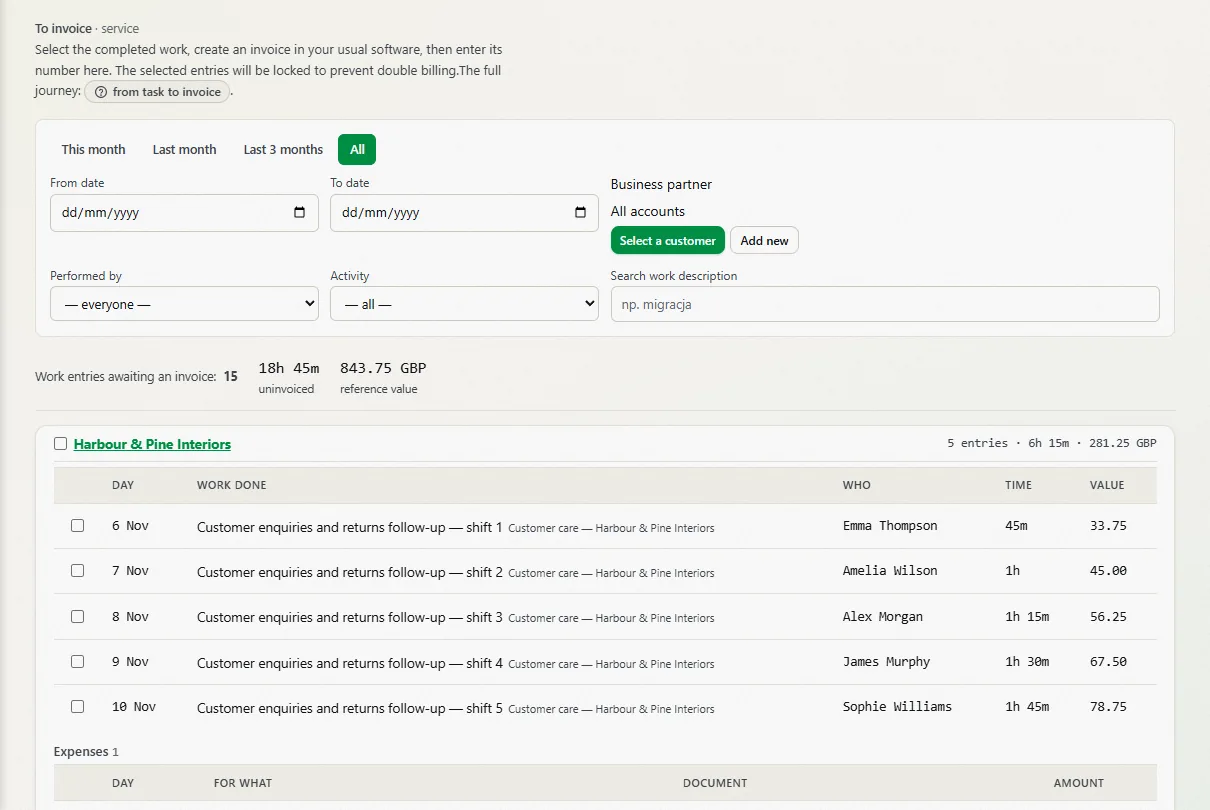
Log time against a client or directly from a task. ‘To invoice’ totals your uninvoiced hours. Create an invoice in your usual software, then enter its number in ABCare. The billed entries are locked to prevent double billing.

To invoice screen showing uninvoiced time entries grouped by client, with total hours and value
Uninvoiced time grouped by client.

You also get saved replies, configurable automations, a team password vault, deadline and workload reports, and an Android app.

Illustration: an open box with a return arrow and a repair spanner

Start with the features you need

For Allegro support, start with Tickets. You can enable or hide tasks and time billing in company settings. Hiding them keeps your data intact, ready for when you enable them again. Add more features as your team needs them.

Everyday workflows, step by step

An Allegro complaint

  1. The customer’s message arrives in Tickets with the order number beside it.
  2. Give the ticket your own status, such as ‘Checking the order’.
  3. Select your decision in the ticket and ABCare sends it to Allegro.

Items under repair

  1. Click ‘+ Service’ in the ticket and choose a repair status.
  2. Enter the service provider, repair reference and expected return date.
  3. ‘Under repair’ tracks the days elapsed and shows which repairs are overdue.

Return

  1. The Allegro return appears in the list automatically.
  2. Give it a status, such as ‘Waiting for the parcel’.
  3. Select several returns and update their status at once.

Bill for your time

  1. Log time against a client or from a task.
  2. Select the completed work in ‘To invoice’.
  3. Create an invoice in your usual software, then enter its number in ABCare to lock the billed entries.
Illustration: a clock and a stack of invoices with a pen

How much time do you spend finding orders?

This is an illustrative calculation, not a measured result. Use your own figures. When the order is already beside the message, you can skip the search.

40 messages per day
× 2 min finding the order for each one
= 80 min per day
× 20 working days
= 1 600 min or around 27 hours a month

Example assumptions: 40 messages per day, 2 minutes to find each order, 20 working days per month.

Security

  • Separate data for every company. Each company can see only its own tickets, customers and settings.
  • A shared password vault. Your team's passwords are stored encrypted.
  • Five predefined roles. Each role includes guidance on who it is for, including administrators, support managers and agents.
  • Protected sign-in. Accounts are locked after five failed attempts. A sign-in log and passkey sign-in are also available.
  • Backups. The database containing tickets and settings is backed up daily.
Illustration: a sturdy padlock with a key and a small shield

Questions and answers

Do I need to use every feature?

No. Start with Tickets for Allegro support. Enable or hide tasks and time billing in company settings whenever you need them.

Which channels are supported?

Allegro (messages, discussions, complaints and returns) and email accounts, including Gmail, Outlook and Microsoft 365. Receive Erli messages by email.

Can I try it without creating an account?

Yes. The demo uses fictional data, so you can explore the app and try making changes. Changes are saved until the nightly reset. No messages are sent externally.

Does ABCare reply to customers for me?

You control when ABCare sends replies. Insert saved replies yourself, or enable and configure automations and automatic replies to suit your workflow.

Is there a mobile app?

Yes, for Android. Access email, tasks and alerts, and get notifications when new messages arrive.

Where can I find instructions?

Visit the help centre at docs.appsbusters.pl for guides in Polish. Each screen in the app also links to the relevant guide.

Start with the inbox

Try the demo with fictional data, or create an account and connect your Allegro account.

Try the demo
An error occurred. Refresh 🗙